Cluster Architecture Sizing in OpenShift Migration Advisor
Cluster Architecture Sizing
The Cluster Architecture Sizing feature calculates the required OpenShift cluster size (nodes, CPU, memory) to accommodate your VMware workloads. It offers two modes:
- Assessment-based sizing — Analyzes VMware cluster inventory from a completed assessment
- Standalone sizing — Calculates sizing from hypothetical inventory totals (no assessment required)
Both modes use identical calculation algorithms and deployment options to determine the optimal bare-metal OpenShift configuration for your workloads.
Assessment-based sizing is available in the UI from the vCenter report.
Applies to: V0.11.0
Last update (dd-mm-yyyy): 20-05-2026
How It Works
The cluster sizing feature transforms VMware inventory data into OpenShift cluster specifications through a sophisticated batching and scheduling algorithm.
High-Level Flow
1. Select a VMware cluster from your inventory
2. Configure deployment mode (Full HA / Single Node / Hosted Control Plane)
3. Specify worker node hardware (CPU, memory, optional SMT threads)
4. Configure over-commit ratios for CPU and memory
5. (Optional) Configure control plane node specifications
6. The system:
   a. Aggregates all VMs in the cluster into service batches
   b. Applies kubelet resource overhead calculations
   c. Applies over-commit ratios to determine Kubernetes requests vs limits
   d. Schedules batched services across worker nodes
   e. Calculates required control plane nodes (if applicable)
   f. Adds failover capacity (for multi-node clusters)
7. Receive sizing recommendation with node count, resource totals, and detailed placement
In the UI, steps 1–7 map to opening the Recommendation page from a vCenter report, configuring the OpenShift Cluster Architecture tab, and clicking Generate recommendation. See Using the UI.
Using the UI
This section walks through cluster architecture sizing in the Migration Advisor UI.
Open cluster architecture sizing
- Complete an assessment and open the vCenter report for that assessment.
- In the cluster dropdown, select the VMware cluster you want to size.
- Click View Recommendation based on vCenter cluster.
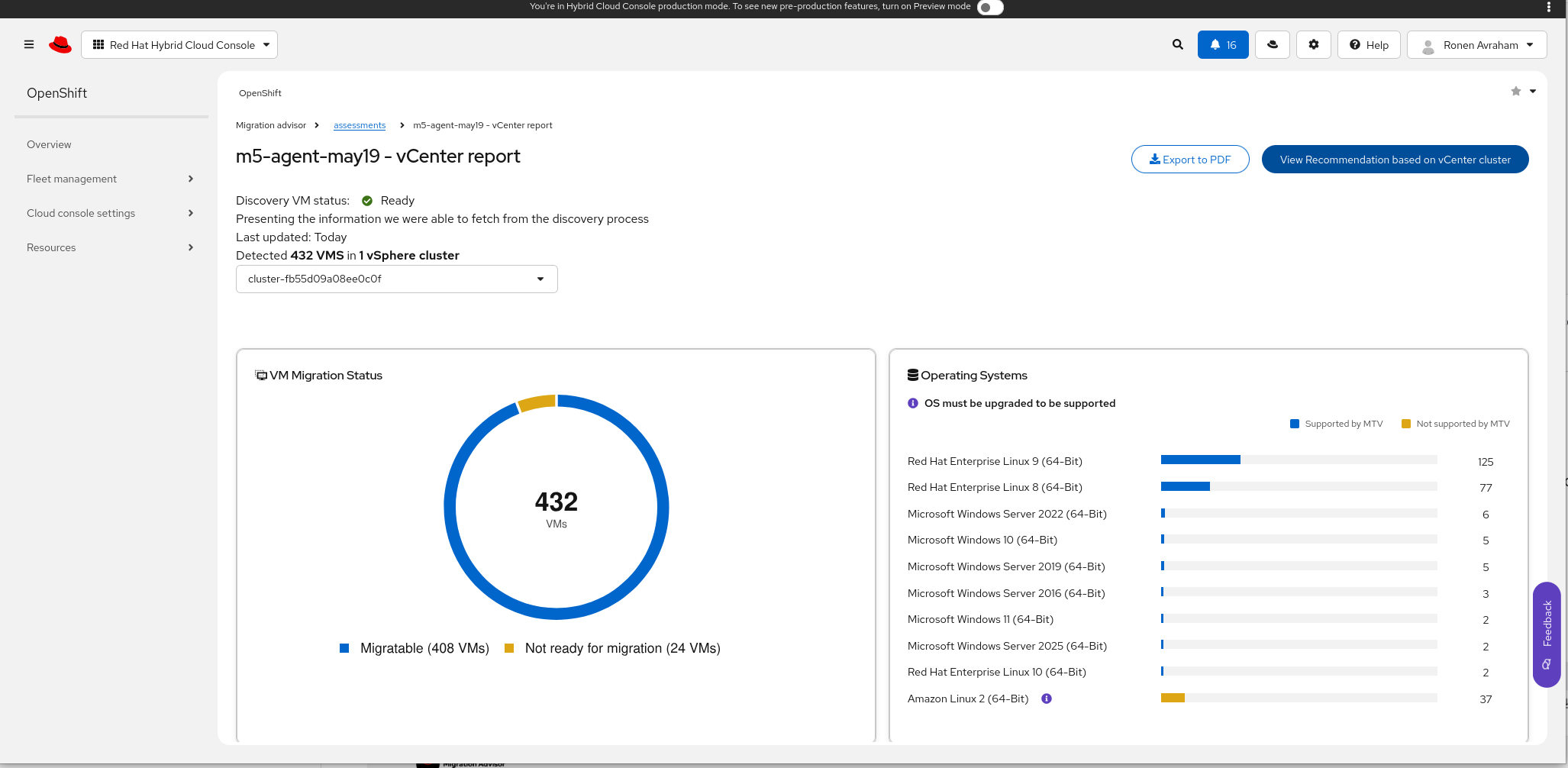
Configure OpenShift cluster architecture
The Recommendation page opens with tabs for related planning features:
| Tab | Purpose |
|---|---|
| OpenShift Cluster Architecture | Cluster sizing (this feature) |
| Migration Time Estimation | Storage throughput and migration duration |
| Migration Complexity | Workload complexity scoring |
| Migration Plan | Migration planning (may be unavailable until prerequisites are met) |
Stay on OpenShift Cluster Architecture.
Migration preferences
| UI control | API / doc parameter | Notes |
|---|---|---|
| Cluster mode | Deployment mode | Full HA (3CP) → Full HA; Single Node → SNO; Hosted Control Plane → HCP |
| Run workloads on control plane nodes | controlPlaneSchedulable | Required for SNO; not recommended for production Full HA |
| Enable SMT/Hyperthreading + thread count | workerNodeThreads | When enabled, set total CPU threads per worker node |
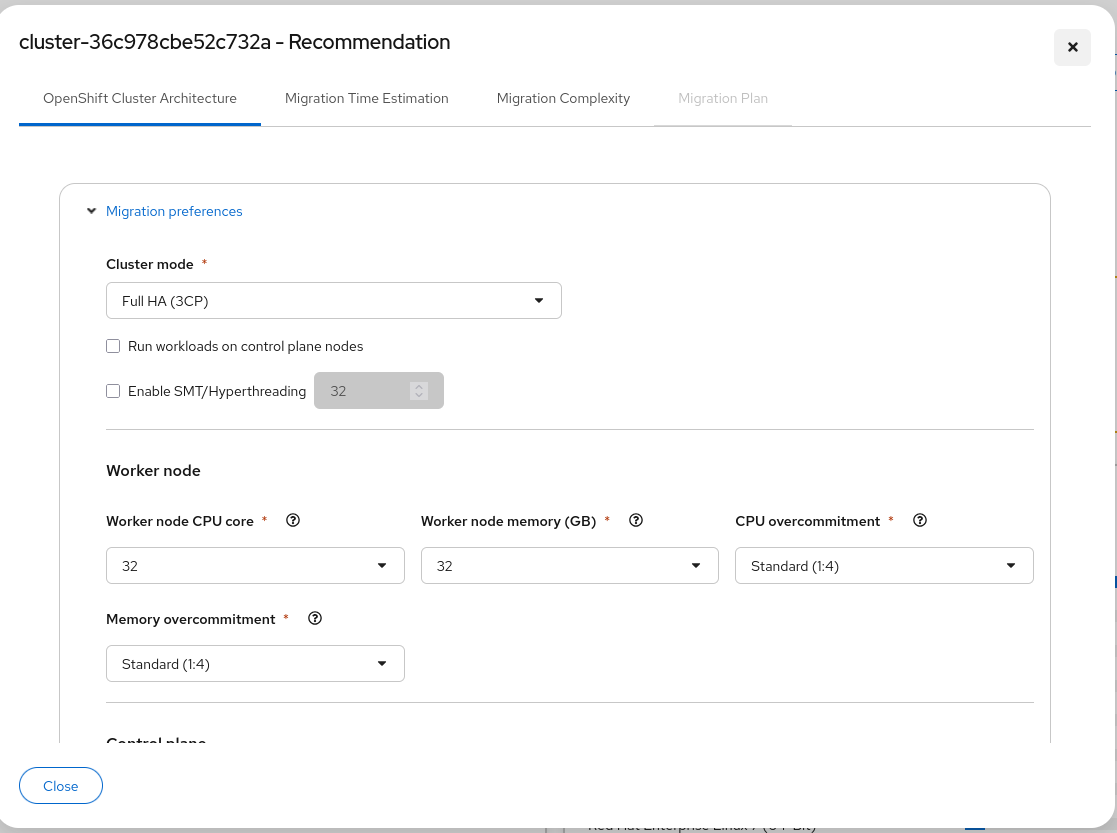
Worker node and control plane
Scroll down to complete worker and control plane settings, then click Generate recommendation.
| UI control | API / doc parameter |
|---|---|
| Worker node CPU core | workerNodeCPU |
| Worker node memory (GB) | workerNodeMemory |
| CPU overcommitment | cpuOverCommitRatio (for example, Standard (1:4) → "1:4") |
| Memory overcommitment | memoryOverCommitRatio |
| Control plane CPU core | controlPlaneCPU (not shown for HCP) |
| Control plane memory (GB) | controlPlaneMemory (not shown for HCP) |
For Single Node mode, set worker and control plane CPU/memory to the same values (see SNO sizing fields).
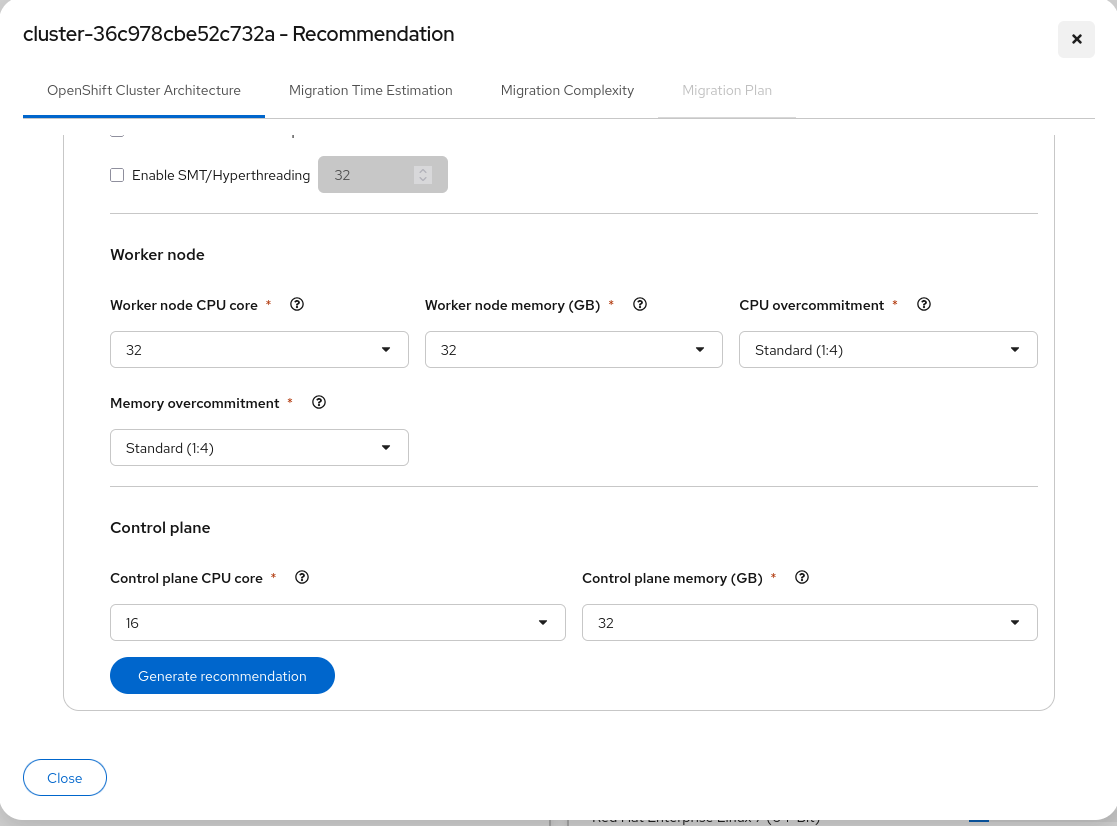
Resource requirements shown in the UI are estimates based on current workloads. Confirm the recommended architecture with your platform team before procurement or build-out.
Read cluster recommendations
After generation, the Cluster recommendations panel summarizes the result. Use Copy as plain text to share with architects or paste into runbooks.
| UI field | Related response / doc fields |
|---|---|
| Total nodes (workers + control plane) | totalNodes, workerNodes, controlPlaneNodes |
| Failover capacity | failoverNodes |
| Node size (worker / control plane) | Hardware configured in the form |
| Overcommitment | cpuOverCommitRatio, memoryOverCommitRatio |
| Workload details (VMs, ratios) | inventoryTotals, effective over-commit |
| Resources (requests, limits, physical capacity) | resourceConsumption |
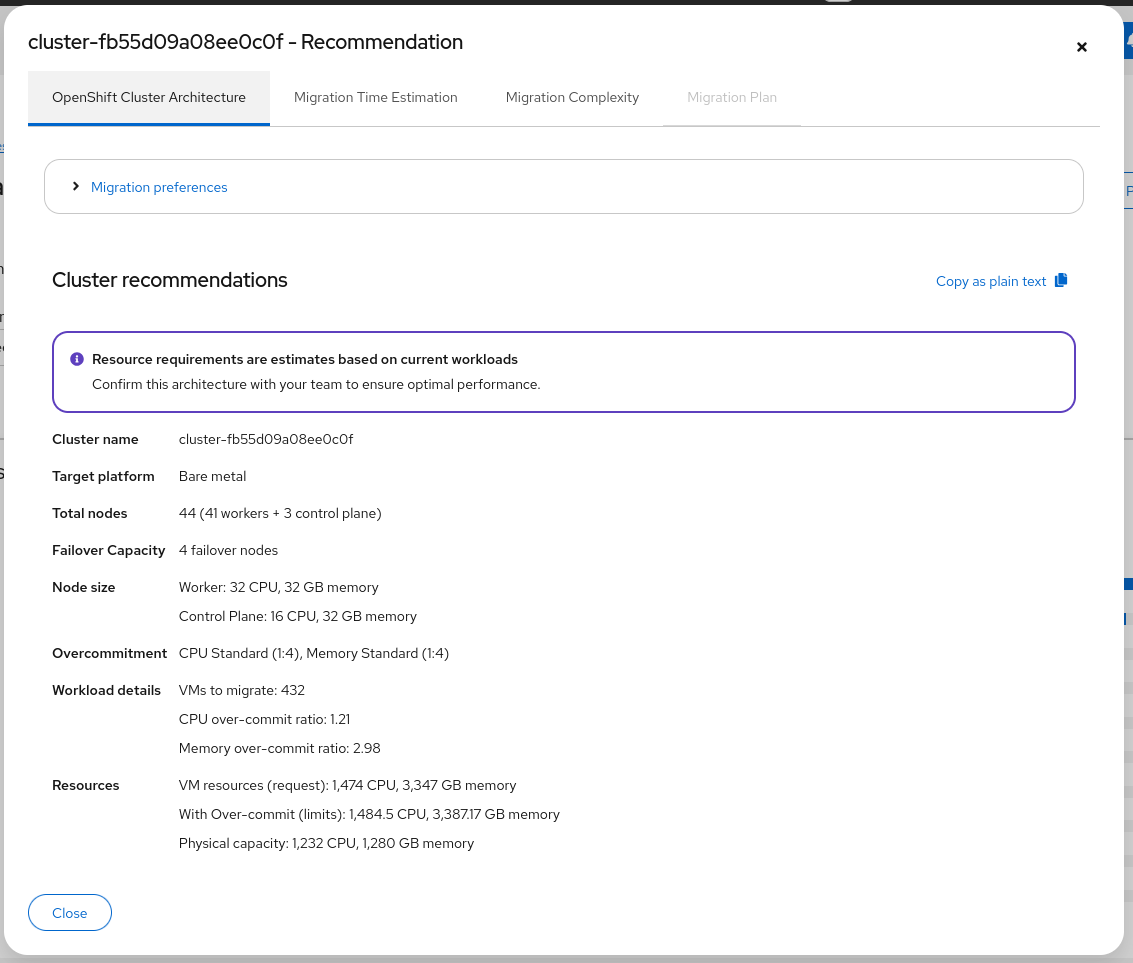
After results are shown, Migration preferences is collapsed. To change deployment mode, node sizes, or over-commit settings, expand Migration preferences, update the values, and click Generate recommendation again.
For programmatic access, the same inputs and outputs are available via the API Workflow.
Deployment Modes
The feature supports three OpenShift deployment architectures. In the UI, select the mode from the Cluster mode dropdown under Migration preferences.
| Mode | Cluster mode (UI) | Control plane | Worker nodes | Use case |
|---|---|---|---|---|
| Full HA | Full HA (3CP) | 3 nodes (default: 6 CPU, 16 GB each) | User-specified count and size | Production clusters requiring high availability |
| Single Node OpenShift (SNO) | Single Node | 1 node (controlPlaneNodeCount: 1) | No separate worker pool; workloads run on the control plane. See SNO sizing fields for how workerNode* and controlPlane* interact. | Edge, small footprint, development |
| Hosted Control Plane (HCP) | Hosted Control Plane | External (managed separately, not sized) | User-specified count and size | Multi-tenant platforms, reduced overhead |
Mode-Specific Configuration
Full HA (3 Control Plane Nodes)
- Default: 3 control plane nodes, each with 6 CPU cores and 16 GB memory
- Configurable: Control plane CPU (2-200 cores), memory (4-512 GB)
- Control plane scheduling: Optional. If enabled, workloads can be scheduled on control plane nodes (not recommended for production)
- Reserved resources: 3.5 CPU and 13.39 GB per control plane node reserved for Kubernetes control plane services (etcd, kube-apiserver, etc.)
Single Node OpenShift (SNO)
SNO is selected when controlPlaneNodeCount is 1. There is one physical node; all workloads are scheduled on it.
controlPlaneSchedulable: Must betrue(the API returns an error if it isfalse).controlPlaneNodeCount: Must be1.- Reserved resources: 3.5 CPU and 13.39 GB reserved for Kubernetes control plane services on the node.
Sizing fields (two inputs, one node): The UI and API expose both Worker node and Control plane CPU/memory fields. For SNO, set them to the same values so batching and placement stay consistent. The API does not validate that they match; mismatched values can produce incorrect results.
| Field group | Role in SNO |
|---|---|
workerNodeCPU, workerNodeMemory, workerNodeThreads | VM batching — how inventory is split into service batches (SMT uses workerNodeThreads to compute effective CPU for batch targets only). |
controlPlaneCPU, controlPlaneMemory | Node placement — the physical size of the single node passed to the sizer (physical cores; SMT is not applied to this value). Also used in fit/min-size error messages. |
controlPlaneSchedulable | Must be true; workloads are placed on the control plane machine set. |
Hosted Control Plane (HCP)
- Control plane: Managed externally, not counted in sizing
- Worker nodes: Only worker nodes are sized
- Restrictions: Cannot specify control plane CPU, memory, or node count (all incompatible with HCP mode)
Configuration Options
The following table describes all configuration parameters for cluster sizing:
| Parameter | Type | Required | Default | Constraints | Description |
|---|---|---|---|---|---|
clusterId | string | Assessment-based only | — | — | VMware cluster identifier (e.g., “domain-c8”). Not used in standalone mode. |
totalVMs | integer | Standalone only | — | 1–10,000 | Total number of VMs. Not used in assessment-based mode (derived from cluster inventory). |
totalCPU | integer | Standalone only | — | 1–100,000 | Total CPU cores across all VMs. Not used in assessment-based mode. |
totalMemory | integer | Standalone only | — | 1–500,000 | Total memory (GB) across all VMs. Not used in assessment-based mode. |
cpuOverCommitRatio | enum | Yes | "1:4" | "1:1", "1:2", "1:4", "1:6" | CPU over-commit ratio. Determines Kubernetes CPU requests relative to limits. |
memoryOverCommitRatio | enum | Yes | "1:2" | "1:1", "1:2", "1:4" | Memory over-commit ratio. Determines Kubernetes memory requests relative to limits. |
workerNodeCPU | integer | Yes | — | 2–200 | Physical CPU cores per worker node. For SNO, used for VM batching only; should match controlPlaneCPU. |
workerNodeMemory | integer | Yes | — | 4–512 | Memory in GB per worker node. For SNO, used for VM batching only; should match controlPlaneMemory. |
workerNodeThreads | integer | No | — | 2–2000 | Total CPU threads per worker node (SMT). Affects batching effective CPU only. Must be ≥ workerNodeCPU. If omitted, assumes no SMT (threads = cores). |
controlPlaneSchedulable | boolean | No | false | — | Allow workload scheduling on control plane nodes. Required true for SNO. |
controlPlaneCPU | integer | No | 6 | 2–200 | Physical CPU cores per control plane node. For SNO, defines the single node size in the sizer. Should match workerNodeCPU. Not allowed with hostedControlPlane. |
controlPlaneMemory | integer | No | 16 | 4–512 | Memory in GB per control plane node. For SNO, defines the single node memory in the sizer. Should match workerNodeMemory. Not allowed with hostedControlPlane. |
controlPlaneNodeCount | integer | No | 3 | 1 or 3 | 1 for SNO, 3 for Full HA. Not allowed with hostedControlPlane. |
hostedControlPlane | boolean | No | false | — | External control plane mode. Incompatible with all control plane configuration fields. |
Over-Commit Ratio Descriptions
CPU Over-Commit Ratios:
1:1— No over-commit. Kubernetes CPU requests = limits. Maximum isolation.1:2— Moderate over-commit. Allows bursting to 2x requested CPU.1:4— Standard over-commit (default). Balances density and performance.1:6— Aggressive over-commit. Maximizes density, suitable for bursty workloads.
Memory Over-Commit Ratios:
1:1— No over-commit. Kubernetes memory requests = limits. Maximum isolation.1:2— Moderate over-commit (default). Allows bursting to 2x requested memory.1:4— Aggressive over-commit. Suitable for workloads with known low memory usage.
Note on API formats: When making requests, over-commit ratios are specified as strings (e.g., "1:4"). In responses, the overCommitRatio fields contain the numeric multiplier values (e.g., 4.0 for “1:4”, 2.0 for “1:2”).
Calculations
VM Batching Algorithm
The system aggregates all VMs in the cluster into batched service workloads that can be scheduled onto OpenShift nodes. This algorithm ensures efficient resource distribution and prevents overloading individual nodes.
For SNO, batching always uses workerNodeCPU, workerNodeMemory, and workerNodeThreads; the sizer then places batches on a single node sized by controlPlaneCPU and controlPlaneMemory.
Algorithm Steps
Calculate target batch capacity (80% of worker node capacity):
targetCPU = effectiveWorkerNodeCPU × 0.8
targetMemory = workerNodeMemory × 0.8
Determine number of batches needed:
batchesCPU = ceil(totalCPU / targetCPU)
batchesMemory = ceil(totalMemory / targetMemory)
batchesVMCount = ceil(totalVMs / 200)  // Max 200 VMs per node
numBatches = max(batchesCPU, batchesMemory, batchesVMCount)
Distribute resources evenly across batches:
cpuPerBatch = totalCPU / numBatches
memoryPerBatch = totalMemory / numBatches
vmsPerBatch = totalVMs / numBatches (with remainder distributed to first batches)
Enforce minimum batch sizes:
- Minimum CPU per batch: 1.0 core
- Minimum memory per batch: 2.0 GB
- If below minimums, recalculate batches to meet constraints
Apply over-commit ratios:
limitCPU = cpuPerBatch
limitMemory = memoryPerBatch
requiredCPU = limitCPU / cpuOverCommitMultiplier
requiredMemory = limitMemory / memoryOverCommitMultiplier
Where:
cpuOverCommitMultiplier: 1.0 (1:1), 2.0 (1:2), 4.0 (1:4), 6.0 (1:6)memoryOverCommitMultiplier: 1.0 (1:1), 2.0 (1:2), 4.0 (1:4)
Example
Input:
- Total VMs: 100
- Total CPU: 400 cores
- Total Memory: 800 GB
- Worker node: 32 CPU, 64 GB memory
- SMT enabled: 128 threads (effective: 80 cores)
- CPU over-commit: 1:4
- Memory over-commit: 1:2
Calculation:
Target capacity:
  targetCPU = 80 × 0.8 = 64 cores
  targetMemory = 64 × 0.8 = 51.2 GB

Batches needed:
  batchesCPU = ceil(400 / 64) = 7
  batchesMemory = ceil(800 / 51.2) = 16
  batchesVMCount = ceil(100 / 200) = 1
  numBatches = max(7, 16, 1) = 16

Resources per batch:
  cpuPerBatch = 400 / 16 = 25 cores
  memoryPerBatch = 800 / 16 = 50 GB
  vmsPerBatch = 100 / 16 = 6 (4 batches get 7 VMs)

Kubernetes resources per batch:
  limitCPU = 25 cores
  limitMemory = 50 GB
  requiredCPU = 25 / 4.0 = 6.25 cores
  requiredMemory = 50 / 2.0 = 25 GB
Result: 16 service batches, each requesting 6.25 CPU / 25 GB with limits of 25 CPU / 50 GB.
SMT/Hyperthreading Effective CPU
When SMT (Simultaneous Multithreading) or Hyperthreading is enabled, the effective CPU capacity is calculated using a 50% efficiency factor for additional threads beyond physical cores.
Formula
effectiveCPU = physicalCores + ((threads - physicalCores) × 0.5)
If threads is not provided or equals physicalCores, the formula returns physicalCores (no SMT).
Examples
| Physical Cores | Threads | Calculation | Effective CPU |
|---|---|---|---|
| 16 | 32 | 16 + ((32 - 16) × 0.5) | 24 |
| 32 | 64 | 32 + ((64 - 32) × 0.5) | 48 |
| 64 | 128 | 64 + ((128 - 64) × 0.5) | 96 |
| 16 | 16 | 16 (no SMT) | 16 |
Rationale: SMT threads share core resources (execution units, cache), providing approximately 50% additional throughput compared to physical cores.
Kubelet Resource Overhead
OpenShift reserves CPU and memory on each node for the kubelet, container runtime, and system services. These reservations reduce the allocatable capacity for workload pods.
Memory Reservation
Memory overhead is calculated using tiered percentages based on total node memory:
| Node Memory | Reservation Formula |
|---|---|
| < 1 GB | Flat 255 MiB |
| ≥ 1 GB | 25% of first 4 GB + 20% of next 4 GB + 10% of next 8 GB + 6% of next 112 GB + 2% of memory above 128 GB |
The reservation uses a bracketed calculation (like tax brackets). For nodes with ≥ 1 GB memory, each tier applies only to the memory in that range:
| Memory Tier | Percentage | Max Reserved |
|---|---|---|
| First 4 GB | 25% | 1.0 GB |
| Next 4 GB (4–8 GB) | 20% | 0.8 GB |
| Next 8 GB (8–16 GB) | 10% | 0.8 GB |
| Next 112 GB (16–128 GB) | 6% | 6.72 GB |
| Above 128 GB | 2% | — |
Example calculation for 64 GB node:
Reserved = (0.25 × 4) + (0.20 × 4) + (0.10 × 8) + (0.06 × 48)
         = 1.0 + 0.8 + 0.8 + 2.88
         = 5.48 GB
CPU Reservation
CPU overhead is calculated using tiered percentages based on total node CPU:
| Node CPU Range | Formula | Example (32 CPU node) |
|---|---|---|
| First core | 0.06 | 0.06 |
| 1–2 cores | 0.06 + 0.01 × (cpu - 1) | 0.06 + 0.01 = 0.07 |
| 2–4 cores | [previous] + 0.005 × (cpu - 2) | 0.07 + 0.01 = 0.08 |
| > 4 cores | [previous] + 0.0025 × (cpu - 4) | 0.08 + (0.0025 × 28) = 0.15 cores |
Cumulative formula for 32 cores:
reserved = 0.06 + (0.01 × 1) + (0.005 × 2) + (0.0025 × 28)
         = 0.06 + 0.01 + 0.01 + 0.07
         = 0.15 cores
These reservations are automatically accounted for in the scheduling algorithm.
Over-Commit Ratios
Over-commit ratios control the relationship between Kubernetes resource requests (guaranteed resources) and limits (maximum burst resources). This allows higher workload density by permitting pods to burst above their guaranteed allocation.
How It Works
When a VM is converted to a Kubernetes pod specification:
- Limit = VM’s full resource allocation (CPU cores, memory GB)
- Request = Limit / over-commit multiplier
Example (1 VM with 4 CPU / 8 GB, 1:4 CPU, 1:2 memory over-commit):
resources:
  requests:
    cpu: 1 core       # 4 / 4
    memory: 4 GB      # 8 / 2
  limits:
    cpu: 4 cores
    memory: 8 GB
This pod is guaranteed 1 CPU and 4 GB, but can burst up to 4 CPU and 8 GB if the node has available capacity.
Scheduling Impact
The scheduler uses requests to determine node placement. With 1:4 CPU over-commit, a 32-core node can theoretically schedule pods with 128 CPU cores in limits, as long as their combined requests don’t exceed the node’s allocatable capacity.
Trade-offs
| Over-Commit Level | Density | Performance Risk |
|---|---|---|
| 1:1 (none) | Low | None. Pods always get full resources. |
| 1:2 | Medium | Low. Suitable for most workloads. |
| 1:4 | High | Medium. Best for bursty workloads with low average utilization. |
| 1:6 | Very High | High. Only for known-bursty or batch workloads. Risk of CPU throttling. |
Failover Capacity
For multi-node clusters (Full HA and HCP modes), the system adds extra worker nodes to handle node failures without service disruption.
Formula
failoverNodes = max(2, ceil(workerNodes × 0.10))
The failover capacity is the greater of:
- 2 nodes (minimum for meaningful HA)
- 10% of the worker node count (rounded up)
Examples
| Worker Nodes | 10% | Failover Nodes |
|---|---|---|
| 5 | 0.5 | 2 (minimum) |
| 15 | 1.5 | 2 (10% rounds to 2) |
| 25 | 2.5 | 3 (10% rounds to 3) |
| 50 | 5.0 | 5 |
| 100 | 10.0 | 10 |
Total nodes = worker nodes + failover nodes + control plane nodes (if applicable)
Rationale: Ensures that if a worker node fails, its workloads can be rescheduled across surviving nodes without exceeding the target 80% node capacity.
Minimum Node Size Calculation
When the UI displays a “minimum recommended node size” message, it’s based on ensuring the cluster fits within operational limits (max 100 nodes).
Formula
minEffectiveCPU = inventoryCPU / (100 × 0.8)
minNodeCPU = ceil(minEffectiveCPU / smtMultiplier)
minNodeCPU = ceil(minNodeCPU / 2) × 2  // Round to even

minNodeMemory = ceil(inventoryMemory / (100 × 0.8))
minNodeMemory = ceil(minNodeMemory / 4) × 4  // Round to multiple of 4
Where:
inventoryCPU= total CPU cores from all VMsinventoryMemory= total memory (GB) from all VMssmtMultiplier= effectiveCPU / physicalCores (e.g., 1.5 for 2:1 SMT)- Max nodes = 100 (architectural limit)
- Capacity multiplier = 0.8 (target 80% utilization)
Example
Input:
- Inventory: 3200 CPU cores, 6400 GB memory
- SMT multiplier: 1.5 (e.g., 32 cores, 64 threads → 48 effective)
Calculation:
minEffectiveCPU = 3200 / (100 × 0.8) = 40 effective cores
minNodeCPU = ceil(40 / 1.5) = ceil(26.67) = 27 cores
minNodeCPU = ceil(27 / 2) × 2 = 14 × 2 = 28 cores (rounded to even)

minNodeMemory = ceil(6400 / 80) = ceil(80) = 80 GB
minNodeMemory = ceil(80 / 4) × 4 = 20 × 4 = 80 GB (already multiple of 4)
Result: Minimum recommended node size is 28 CPU / 80 GB memory.
If the user selects a smaller node size, the cluster will exceed 100 nodes and the sizing request will fail.
API Workflow
The cluster sizing feature offers two endpoints for calculating cluster requirements:
- Assessment-based sizing — Calculate sizing for an existing VMware cluster from a completed assessment
- Standalone sizing — Calculate hypothetical sizing with inline inventory data (no assessment required)
Both endpoints use the same calculation algorithms and share identical configuration parameters. The primary difference is the source of inventory data.
Assessment-Based Sizing
Calculate cluster sizing for a VMware cluster from an existing assessment.
Endpoint:
POST /api/v1/assessments/{assessmentId}/cluster-requirements
Request Body Example (Full HA with SMT):
curl -X POST http://localhost:3000/api/v1/assessments/123e4567-e89b-12d3-a456-426614174000/cluster-requirements \
  -H "Content-Type: application/json" \
  -d '{
    "clusterId": "domain-c8",
    "cpuOverCommitRatio": "1:4",
    "memoryOverCommitRatio": "1:2",
    "workerNodeCPU": 32,
    "workerNodeMemory": 64,
    "workerNodeThreads": 128,
    "controlPlaneSchedulable": false,
    "controlPlaneCPU": 6,
    "controlPlaneMemory": 16,
    "controlPlaneNodeCount": 3,
    "hostedControlPlane": false
  }'
Request Body Example (Single Node OpenShift):
curl -X POST http://localhost:3000/api/v1/assessments/123e4567-e89b-12d3-a456-426614174000/cluster-requirements \
  -H "Content-Type: application/json" \
  -d '{
    "clusterId": "domain-c8",
    "cpuOverCommitRatio": "1:4",
    "memoryOverCommitRatio": "1:2",
    "workerNodeCPU": 64,
    "workerNodeMemory": 128,
    "workerNodeThreads": 128,
    "controlPlaneSchedulable": true,
    "controlPlaneCPU": 64,
    "controlPlaneMemory": 128,
    "controlPlaneNodeCount": 1,
    "hostedControlPlane": false
  }'
Request Body Example (Hosted Control Plane):
curl -X POST http://localhost:3000/api/v1/assessments/123e4567-e89b-12d3-a456-426614174000/cluster-requirements \
  -H "Content-Type: application/json" \
  -d '{
    "clusterId": "domain-c8",
    "cpuOverCommitRatio": "1:4",
    "memoryOverCommitRatio": "1:2",
    "workerNodeCPU": 32,
    "workerNodeMemory": 64,
    "workerNodeThreads": 128,
    "hostedControlPlane": true
  }'
Standalone Sizing
Calculate hypothetical cluster sizing with inline inventory data. Use this endpoint for “what-if” scenarios, capacity planning, or sizing estimates without running a full VMware assessment.
Endpoint:
POST /api/v1/cluster-requirements
Key Differences from Assessment-Based Sizing:
| Aspect | Assessment-Based | Standalone |
|---|---|---|
| Requires assessment | Yes — must complete VMware data collection first | No — provide inventory totals directly |
| Cluster selection | clusterId field (e.g., “domain-c8”) | Not applicable — no cluster ID needed |
| Inventory source | Automatically retrieved from assessment database | Inline: totalVMs, totalCPU, totalMemory fields |
| Use case | Sizing for actual VMware clusters to be migrated | Hypothetical sizing, capacity planning, pre-assessment estimates |
Additional Required Parameters (Standalone Only):
| Parameter | Type | Required | Constraints | Description |
|---|---|---|---|---|
totalVMs | integer | Yes | 1–10,000 | Total number of VMs to size for |
totalCPU | integer | Yes | 1–100,000 | Total CPU cores across all VMs |
totalMemory | integer | Yes | 1–500,000 | Total memory (GB) across all VMs |
All other configuration parameters (worker node specs, control plane settings, over-commit ratios) are identical between the two endpoints.
Request Body Example (Standalone Full HA):
curl -X POST http://localhost:3000/api/v1/cluster-requirements \
  -H "Content-Type: application/json" \
  -d '{
    "totalVMs": 100,
    "totalCPU": 400,
    "totalMemory": 800,
    "cpuOverCommitRatio": "1:4",
    "memoryOverCommitRatio": "1:2",
    "workerNodeCPU": 32,
    "workerNodeMemory": 64,
    "workerNodeThreads": 128,
    "controlPlaneSchedulable": false,
    "controlPlaneCPU": 6,
    "controlPlaneMemory": 16,
    "controlPlaneNodeCount": 3,
    "hostedControlPlane": false
  }'
Request Body Example (Standalone Single Node OpenShift):
curl -X POST http://localhost:3000/api/v1/cluster-requirements \
  -H "Content-Type: application/json" \
  -d '{
    "totalVMs": 20,
    "totalCPU": 80,
    "totalMemory": 160,
    "cpuOverCommitRatio": "1:4",
    "memoryOverCommitRatio": "1:2",
    "workerNodeCPU": 128,
    "workerNodeMemory": 256,
    "workerNodeThreads": 256,
    "controlPlaneSchedulable": true,
    "controlPlaneCPU": 128,
    "controlPlaneMemory": 256,
    "controlPlaneNodeCount": 1
  }'
Request Body Example (Standalone Hosted Control Plane):
curl -X POST http://localhost:3000/api/v1/cluster-requirements \
  -H "Content-Type: application/json" \
  -d '{
    "totalVMs": 150,
    "totalCPU": 600,
    "totalMemory": 1200,
    "cpuOverCommitRatio": "1:4",
    "memoryOverCommitRatio": "1:2",
    "workerNodeCPU": 32,
    "workerNodeMemory": 64,
    "workerNodeThreads": 128,
    "hostedControlPlane": true
  }'
Response Format
Both endpoints return identical response structures.
Response Example (200 OK):
{
  "clusterSizing": {
    "totalNodes": 20,
    "workerNodes": 15,
    "controlPlaneNodes": 3,
    "failoverNodes": 2,
    "totalCPU": 960,
    "totalMemory": 1280
  },
  "resourceConsumption": {
    "cpu": 100,
    "memory": 400,
    "limits": {
      "cpu": 400,
      "memory": 800
    },
    "overCommitRatio": {
      "cpu": 4.0,
      "memory": 2.0
    }
  },
  "inventoryTotals": {
    "totalVMs": 100,
    "totalCPU": 400,
    "totalMemory": 800
  }
}
Understanding Results
ClusterSizing Fields
| Field | Type | Description |
|---|---|---|
totalNodes | integer | Total OpenShift nodes required (workers + control plane + failover) |
workerNodes | integer | Number of worker nodes needed to schedule workloads |
controlPlaneNodes | integer | Number of control plane nodes (0 for HCP, 1 for SNO, 3 for Full HA) |
failoverNodes | integer | Additional nodes for HA failover capacity (0 for SNO) |
totalCPU | integer | Total physical CPU cores across all nodes |
totalMemory | integer | Total memory (GB) across all nodes |
ResourceConsumption Fields
| Field | Type | Description |
|---|---|---|
cpu | number | Total Kubernetes CPU requests (cores) for all workload pods |
memory | number | Total Kubernetes memory requests (GB) for all workload pods |
limits.cpu | number | Total Kubernetes CPU limits (cores) for all workload pods |
limits.memory | number | Total Kubernetes memory limits (GB) for all workload pods |
overCommitRatio.cpu | number | CPU over-commit multiplier applied (e.g., 4.0 for “1:4” ratio) |
overCommitRatio.memory | number | Memory over-commit multiplier applied (e.g., 2.0 for “1:2” ratio) |
Note: cpu and memory represent Kubernetes resource requests (guaranteed resources after applying over-commit). limits represent the actual VM resource allocations before over-commit.
InventoryTotals Fields
| Field | Type | Description |
|---|---|---|
totalVMs | integer | Total number of VMs in the source VMware cluster |
totalCPU | integer | Sum of all VM CPU allocations (cores) |
totalMemory | integer | Sum of all VM memory allocations (GB) |
These fields represent the original VMware inventory before any OpenShift transformations.
Examples
Example 1: Full HA Cluster with SMT
Scenario: Migrate 200 VMs (800 CPU cores, 1600 GB memory) to a Full HA OpenShift cluster using 32-core / 64 GB worker nodes with SMT enabled (128 threads).
Configuration:
- Cluster ID:
domain-c16 - Worker node: 32 CPU, 64 GB, 128 threads
- SMT effective CPU: 32 + ((128 - 32) × 0.5) = 80 cores
- CPU over-commit: 1:4
- Memory over-commit: 1:2
- Control plane: 3 nodes, 6 CPU / 16 GB each (default)
- Control plane schedulable: No
Calculation:
VM Batching:
Target capacity: 80 × 0.8 = 64 CPU, 64 × 0.8 = 51.2 GB Batches: max(ceil(800/64), ceil(1600/51.2), ceil(200/200)) = max(13, 32, 1) = 32 Resources per batch: 800/32 = 25 CPU, 1600/32 = 50 GB, 200/32 = 6-7 VMs After over-commit: requests = 6.25 CPU / 25 GB, limits = 25 CPU / 50 GBScheduling:
- 32 batches are placed using requests against each worker’s allocatable CPU and memory (after kubelet overhead). This example uses 30 workers so failover and totals below match; call cluster-requirements for a real assessment.
Failover:
failoverNodes = max(2, ceil(30 × 0.10)) = max(2, 3) = 3Total:
totalNodes = 30 (workers) + 3 (failover) + 3 (control plane) = 36 nodes
totalCPU = 33 × 32 = 1056 cores (30+3 workers) + 3 × 6 = 18 (CP) = 1074 cores
totalMemory = 33 × 64 = 2112 GB (workers) + 3 × 16 = 48 GB (CP) = 2160 GB
Result:
- Total nodes: 36 (30 workers + 3 failover + 3 control plane)
- Total CPU: 1074 cores
- Total memory: 2160 GB
- Resource consumption: 200 CPU requests, 800 GB requests / 800 CPU limits, 1600 GB limits
Example 2: Single Node OpenShift
Scenario: Small edge deployment with 20 VMs (80 CPU cores, 160 GB memory) on a Single Node OpenShift.
Configuration:
- Cluster ID:
domain-c8 controlPlaneNodeCount: 1,controlPlaneSchedulable: true- Worker node (batching): 128 CPU, 256 GB, 256 threads
- Control plane (single node in sizer): 128 CPU, 256 GB — same as worker (required for consistent results)
- SMT effective CPU (batching only): 128 + ((256 - 128) × 0.5) = 192 cores
- CPU over-commit: 1:4
- Memory over-commit: 1:2
Calculation:
VM batching (uses
workerNode*and effective CPU from threads):Target capacity: 192 × 0.8 = 153.6 CPU, 256 × 0.8 = 204.8 GB Batches: max(ceil(80/153.6), ceil(160/204.8), ceil(20/200)) = max(1, 1, 1) = 1 Resources per batch: 80 CPU, 160 GB, 20 VMs After over-commit: requests = 20 CPU / 80 GB, limits = 80 CPU / 160 GBSingle-node placement (sizer uses
controlPlaneCPU/controlPlaneMemory— 128 physical cores, not the 192 effective CPU from SMT):Control plane reserved: 3.5 CPU, 13.39 GB Kubelet reserved (128-core node): 0.39 CPU, 11.88 GB memory Allocatable: 128 - 3.5 - 0.39 = 124.11 CPU, 256 - 13.39 - 11.88 = 230.73 GB Workload requests fit: 20 CPU / 80 GB < 124.11 / 230.73 ✓
Result:
- Total nodes: 1
- Total CPU: 128 cores
- Total memory: 256 GB
- Resource consumption: 20 CPU requests, 80 GB requests / 80 CPU limits, 160 GB limits
Tips
Choose the right path: Use the UI or assessment-based sizing API when you have completed a VMware assessment and want sizing from real inventory. Use standalone sizing (API only) for hypothetical scenarios, capacity planning, or quick estimates without running a full assessment.
Start with defaults: Use 1:4 CPU and 1:2 memory over-commit ratios unless you have specific workload profiles. These ratios balance density and performance for most mixed workloads.
Enable SMT when available: Hyperthreading typically provides 20-50% additional throughput. Always specify
workerNodeThreadsif your hardware supports SMT to get accurate sizing. For SNO, SMT affects batching only; the sizer models the node usingcontrolPlaneCPU(physical cores).Match worker and control plane sizes for SNO: Use the same CPU and memory in the Worker node and Control plane fields.
workerNode*drives batching;controlPlane*drives whether the workload fits on the one node.Plan for failover: The automatic 10% failover capacity (minimum 2 nodes) ensures that losing a single worker node doesn’t cause resource exhaustion. For mission-critical workloads, consider manually adding extra nodes beyond the recommendation.
Validate node sizes against inventory: If the UI suggests a minimum node size larger than your planned hardware, it’s because the cluster won’t fit within the 100-node architectural limit. Either use larger nodes or split the migration across multiple OpenShift clusters.
Don’t schedule workloads on control plane in production: While
controlPlaneSchedulable=trueis supported for Full HA, it’s not recommended for production clusters. Reserve control plane nodes exclusively for Kubernetes control services to ensure reliability.Use Hosted Control Plane for multi-tenant platforms: HCP mode reduces per-cluster overhead by externalizing the control plane, making it ideal for hosting many small tenant clusters.
Compare with actual migrations: The sizing calculations are estimates based on static inventory. After your first migration, compare actual resource consumption against the recommendation to tune future over-commit ratios.
Consider growth: The recommendation is sized for your current inventory. If you plan to add workloads post-migration, either increase node counts manually or re-run sizing after adding the planned VMs to your inventory.
Storage is separate: This feature sizes compute resources (CPU, memory, nodes). Plan storage separately based on disk provisioning requirements from your VMware inventory (see Aggregated Data Report for total provisioned disk).
Retrieve stored inputs for consistency: Use the stored input endpoint to ensure consistency when re-running sizing calculations or comparing different deployment modes for the same cluster.